Watch the walkthrough
Why it matters
Your reps log every call in LeadPerfection. Until now, a result like Do not call or Not interested stayed there, and your text campaigns kept messaging that customer.
Before you start
- Owner or admin. Only workspace owners and admins can change these rules.
- Lead Perfection is connected. The result codes come from your own LeadPerfection account. If the table says Connect Lead Perfection above to load disposition codes, connect it first in the same page.
- Know your codes. Agree with your team which results mean "never contact again" and which mean "try again later", and for how long.
- Optional: a date trigger. If you want follow-ups to restart on their own when a pause ends, create the date trigger on Outreach hold until before you turn that option on. Dates are not backfilled.
Set it up
- Open Settings and click Lead Perfection in the left menu, under Integrations & Intake.
- Scroll to When LeadPerfection records a call result. It shows Not configured (inert) until you save rules.
- For each result code, open the Action menu and choose Nothing, Do not contact, or Pause automation. For a pause, type the number of days (1 to 365).
- Optional: turn on Write an Outreach hold until date (see the tip below).
- Click Save rules. The badge changes to Active (v1), and each later save adds a version.
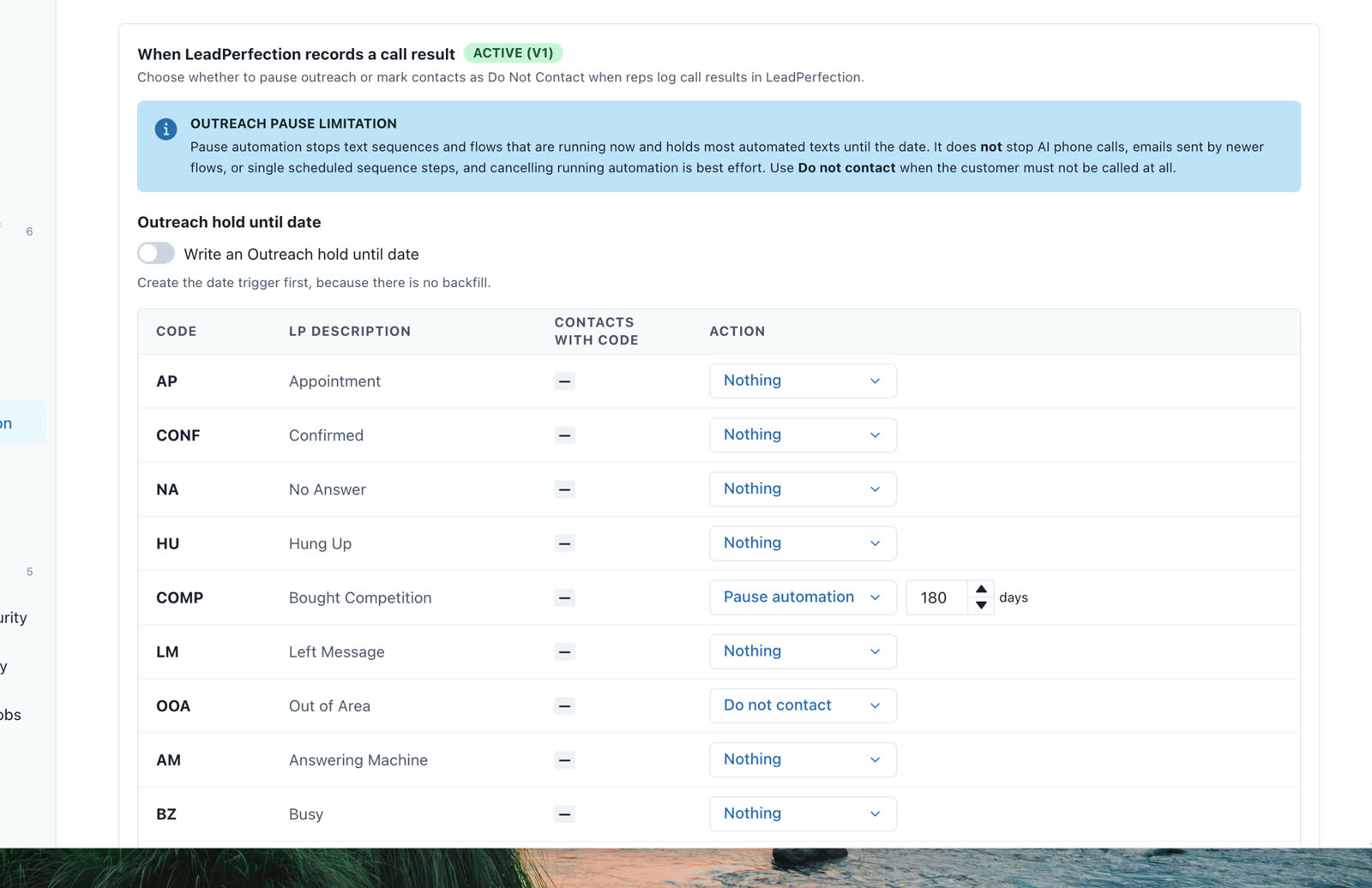
The actions
| Action | What happens to the contact |
|---|---|
| Nothing | No change. This is the default for every code. |
| Do not contact | Lead status becomes DNC, text and email opt-ins are turned off, the conversation is closed, and running automation is cancelled. It's recorded in your do-not-contact log. |
| Pause automation for N days | Running text sequences and flows are cancelled, and most automated texts are held until midnight (contact's time) on the call date plus N days. |
How results arrive
- We check LeadPerfection for new call activity every 15 minutes, from 7 AM to 9 PM Central, every day.
- For each lead, we read the latest call result. If it matches a rule and the call was logged after you saved your rules, we act.
- Each call is acted on once. Checking again, or a second sync, never applies it twice.
- A longer background check also works through all your LeadPerfection leads over time, and catches results the 15-minute check didn't see.
- Need one contact checked right now? Use the refresh icon next to them on the Lead Perfection contacts page.
Apply rules to older leads
- Save your rules first. Preview existing leads stays disabled while the table has unsaved changes.
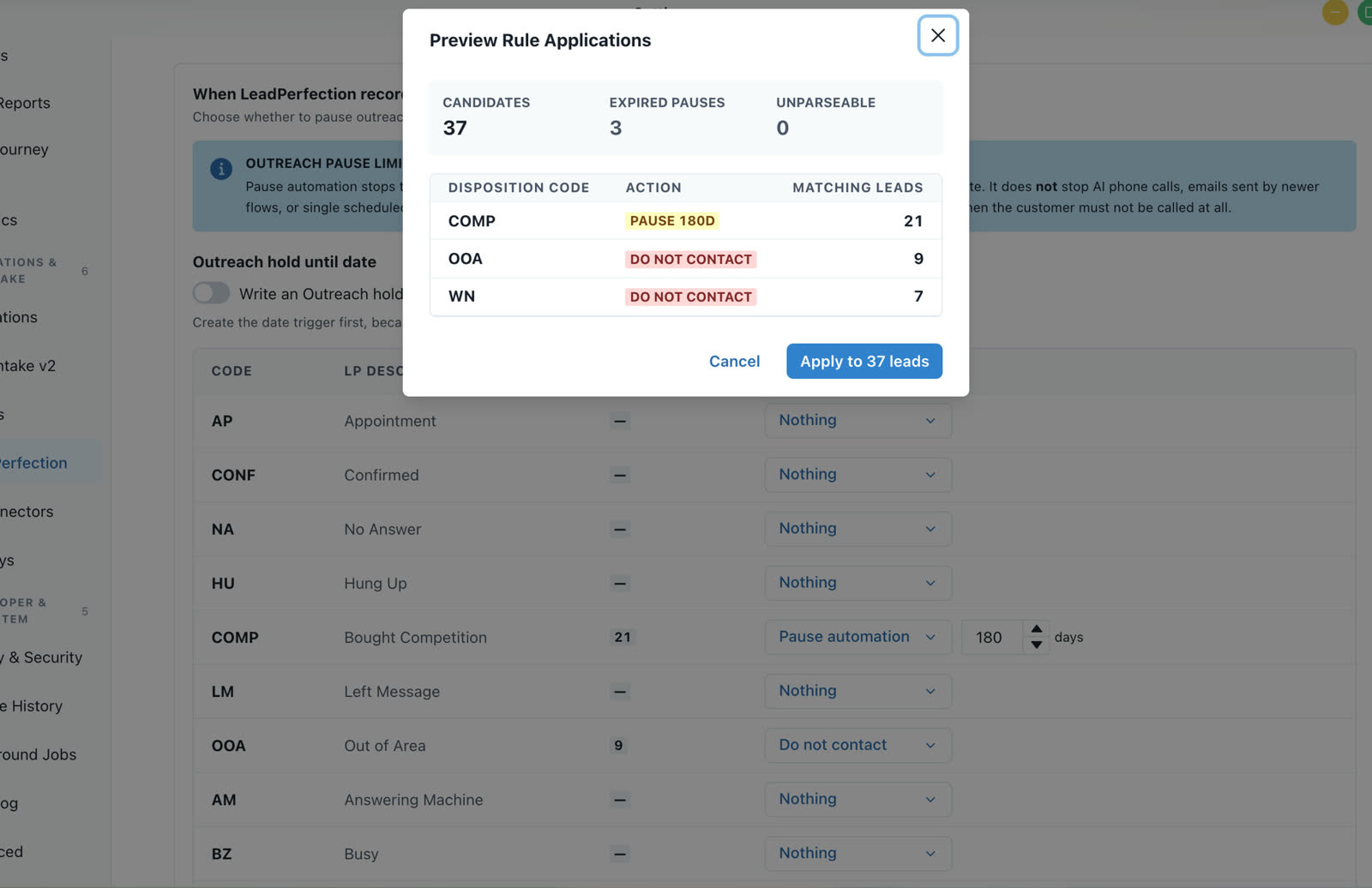
- Click Preview existing leads. The preview shows how many contacts match, how many pauses have already ended (they're skipped), and a breakdown by code and action.
- Check the numbers, then click Apply. Leads are processed in batches with a progress line.
- If it stops part way, click Resume Apply. Contacts that were already done are skipped.
Each preview covers up to 5,000 contacts. If you have more, choose one result code in the preview and apply code by code.
Undo
- To undo a pause: open the contact and click Resume Automation in the contact's quick actions. It clears the pause date, removes the Outreach hold until date, and stops any pending pause for that call.
- To undo a Do Not Contact set by a rule: contact support. It's locked on purpose, so changing the lead status or opt-ins puts it straight back.
- To change a rule: edit the table and click Save rules again. Calls already acted on keep what was applied.
Good to know
- Results your own automations write back to LeadPerfection (with Add Call History) aren't seen by the 15-minute check. They're applied when the contact is refreshed or by the longer background check.
- Only calls after you save count automatically. Use Preview and Apply for older calls.
- Turning rules off: set every code to Nothing and save.
Troubleshooting
| What you see | Why | Fix |
|---|---|---|
| "Connect Lead Perfection above to load disposition codes" | Lead Perfection isn't connected, or its login stopped working. | Connect it on the same page and click Test. |
| A contact wasn't paused or marked | The call was logged before you saved rules, its code is set to Nothing, or it hasn't been checked yet. | Wait for the next 15-minute check, refresh the contact, or use Preview and Apply. |
| Preview existing leads is greyed out | The table has unsaved changes. | Click Save rules first. |
| A "needs attention" message on the section | Some contacts couldn't be updated yet. | They're retried automatically. If it stays, contact support. |
| "These rules were changed by someone else" | Another admin saved rules after you opened the page. | Reload the page and make your change again. |
Questions
Does this change anything before I save rules? No. Until you save rules, the section is inert and nothing happens.
Which result counts if a lead has several calls? The latest call result.
Can one call be acted on twice? No. Each call is acted on once, even if it's checked again.
When does a pause end? At midnight in the contact's own time zone, on the call date plus the number of days you set.
Do I need to set a time zone? No. Call times are read in your workspace's time zone.
Will AI phone calls stop during a pause? No. Use Do not contact when a customer must never be called.
Can you help us choose rules? Yes. Contact our support team and we'll go through your result codes with you.