Watch the walkthrough
Why it matters
A homeowner books a visit, then days later a stranger knocks on the door. Many hesitate, and some don't open at all.
Admin setup (once)
Owners and admins set this up in the CRM. Managers can see the settings but not change them.
- Open Sales Coach, then Settings, and scroll to Intro videos.
- Switch on Let reps send intro videos. This also hides customers' phone numbers in the rep app.
- Set Longest intro between 10 and 30 seconds. 20 seconds (the default) keeps the video sharp as a text message.
- Pick When to send: As soon as allowed (inside business hours), or 2, 4, 12, 24 or 48 hours before the visit.
- Write up to 10 message templates and choose one as Default. Use the field buttons to add the customer's name, the rep's name, the visit date and time, and your company name.
- Check What the homeowner reads (sample customer), then click Save intro settings.
| Field | What it adds |
|---|---|
| {{contact.firstname}} | The homeowner's first name, or "there" when it's missing. |
| {{contact.lastname}} | The homeowner's last name. |
| {{rep.name}} / {{rep.firstname}} | The rep's full or first name, or "your consultant" when it's missing. |
| {{appointment.date}} / {{appointment.time}} | The visit date and time, in the visit's time zone. |
| {{workspace.name}} | Your company name. |
The starting template reads: "Hi {{contact.firstname}}, this is {{rep.name}} from {{workspace.name}}. I'll see you on {{appointment.date}} at {{appointment.time}}. Here's a quick hello so you know who to expect. Reply STOP to opt out."
Rep: record and send an intro
- In the Sales Coach iPhone app, open the visit and tap Send my intro.
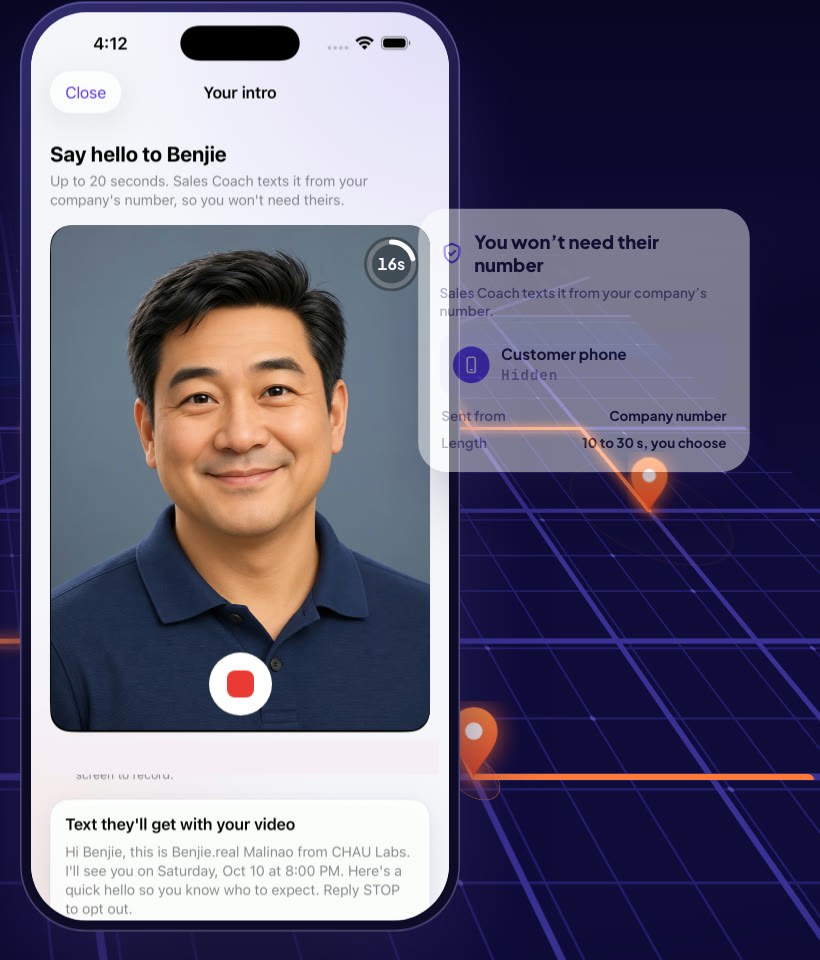
- The front camera opens under Say hello to {first name}. Tap the red button to record. The ring counts down and stops at your team's limit.
- Watch it back. Tap Retake to try again, or Send intro.
- If your team has more than one template, pick one under Text they'll get with your video.
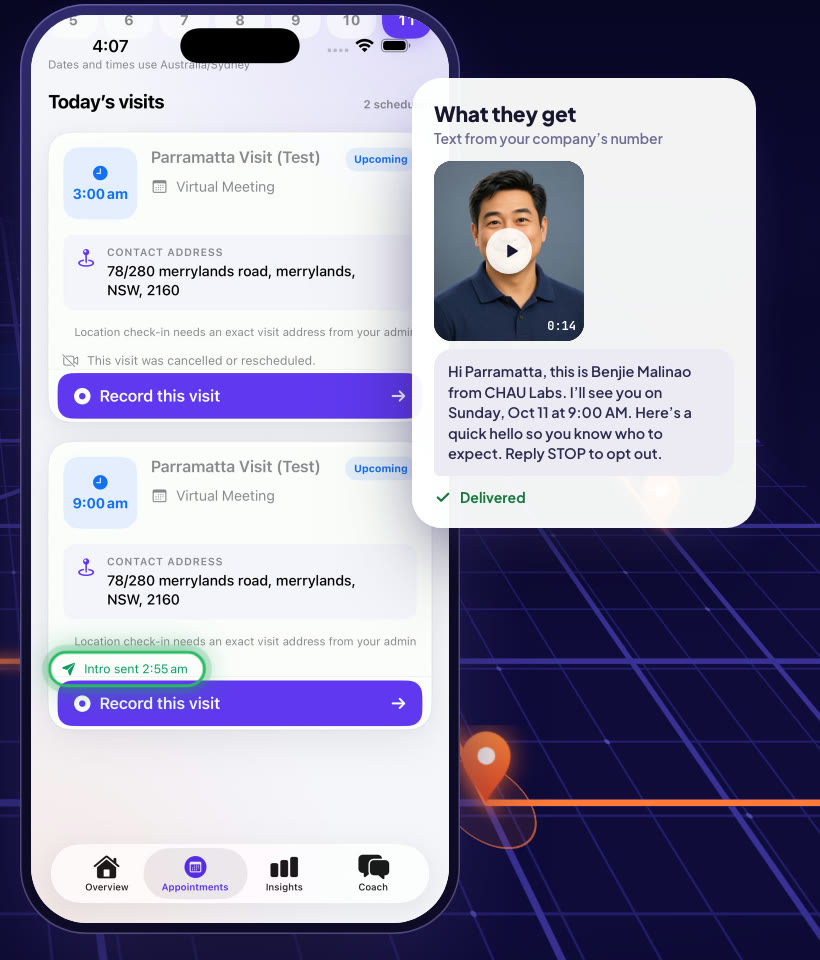
- You'll see Your intro is on its way. The visit card then shows Intro queued, Intro sent, and finally Intro delivered.
Keep it short and friendly: your name, the company, the visit time, and something like "see you then".
What the homeowner gets, and where replies go
- A text from your company's number: the same number that customer already texts with. The video plays right in the message.
- The message is your template, filled in with their name, the rep, and the visit time.
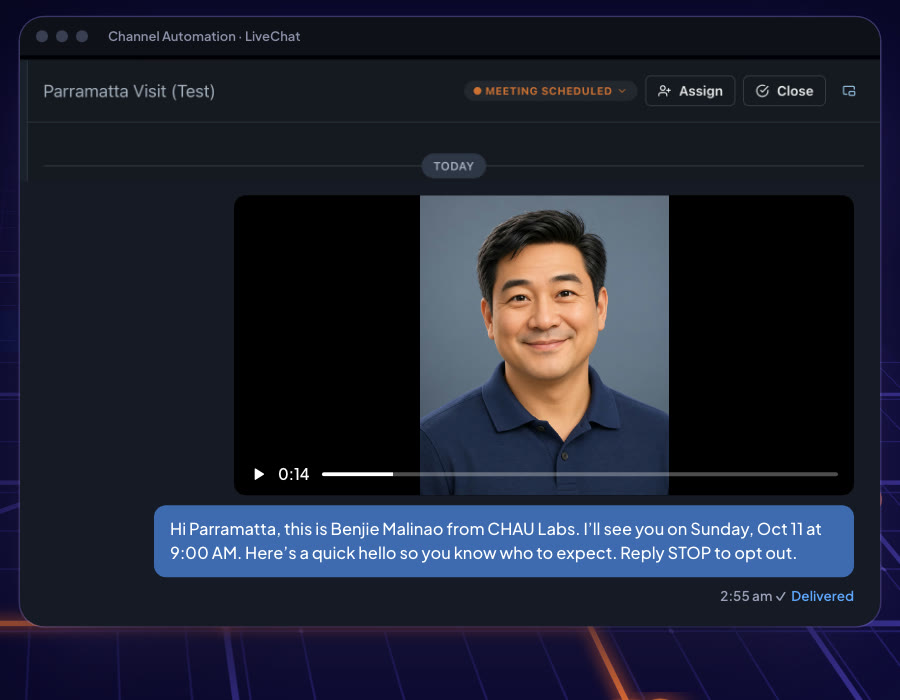
- Replies come to LiveChat, on that contact, not to the rep. The intro itself is saved in the contact's conversation, so your team sees exactly what was sent.
- On the contact page, the Sales Coach visit shows "Rep's intro video delivered" (or sent, or queued).
When an intro goes out, and when it never does
| Rule | What happens |
|---|---|
| Business hours | Intros only go out inside your business hours, or 8am–8pm in the visit's time zone if business hours are off. Outside them, the intro waits. |
| When to send | "As soon as allowed", or the hours before the visit you chose. It always goes out before the visit starts. |
| No time left | If there's no business-hours time before the visit, it isn't sent, and the rep sees "There was no time inside business hours to send it before the visit." |
| Visit changed | A visit that is cancelled, rescheduled, already started, or already has an outcome never gets an intro, even one already queued. |
| Opt-outs | Customers who opted out of texts or are marked do-not-contact are never texted. |
| Phone number | Only US or Canadian mobile numbers. No mobile number on file means no intro. |
| Kept for | Intro videos are deleted 60 days after sending. |
Managers: the Intros view
Open Sales Coach → Intros: every intro video your reps sent in the last 14 days, and when the homeowner got it. It refreshes on its own.
| Column | What it shows |
|---|---|
| Rep · Customer · Visit | Who sent it, to whom, for which visit. |
| Recorded · Text sent | When it was recorded and when it was texted. |
| Status | The badge below, with the reason when it didn't go out. |
| Channel | RCS or MMS, depending on the homeowner's phone. |
| Rep page | "Opened" and when, if the homeowner opened the rep's Meet Your Rep page. |
| Video | Play to watch the intro. |
| Status | Meaning |
|---|---|
| Uploading · Preparing video | The rep just sent it; the video is being readied for texting. |
| Waiting for send time | Queued for your send window. |
| Sending · Sent | On its way to the homeowner. |
| Delivered · Read | It reached the homeowner's phone (Read where their phone reports it). |
| Didn't send | It failed. The reason shows under the badge. |
| Not sent | It was stopped on purpose: the visit changed, the customer opted out, or intros were turned off. |
Privacy
- While intro videos are on, reps don't see customers' phone numbers or email addresses in the app, so every conversation stays with your team.
- Texts always come from your company's number, never the rep's personal phone.
- Every message tells the homeowner they can reply STOP. Opted-out and do-not-contact customers are never texted.
- Videos are deleted after 60 days.
Who can do what
| Role | Can do |
|---|---|
| Rep | Record and send an intro for their own assigned visits, in the Sales Coach iPhone app. |
| Manager | See the settings and the message preview, use the Intros view, and Allow a new intro. |
| Owner, admin | Everything above, plus turn intro videos on or off and edit the length, timing and templates. |
Daily routine (2 minutes)
- Reps: record tomorrow's intros at the end of the day, from the visit card.
- Managers: open Intros each morning. Look for Didn't send and read the reason.
- Check LiveChat for replies to intros, such as gate codes, parking notes or reschedule requests.
- Use Play now and then to coach reps on a warm, short hello.
Troubleshooting
| What the rep sees | Why | Fix |
|---|---|---|
| "Intro videos are turned off for your team." | The setting is off. | An owner or admin switches it on in Settings → Intro videos. |
| "There is no mobile number on file for this customer." | No mobile number on the contact. | The office adds one to the contact. |
| "This customer has opted out of text messages." / "marked do-not-contact." | The customer asked not to be texted. | Don't send. Call the office line instead if needed. |
| "This visit was cancelled or rescheduled." / "has already started." | Intros go only to upcoming, unchanged visits. | Send from the new visit, if there is one. |
| "Intro didn't send. There was no time inside business hours…" | The send window closed before the visit. | Record intros earlier, or choose a shorter "When to send". |
| "Your team has no number to text from yet." / "Texting isn't set up for your team yet." | Your workspace can't send texts yet. | Ask your admin or account manager. |
| "The video was longer than the limit." / "couldn't be made small enough." | The recording was too long or too large to text. | Record a shorter one. |
| "We couldn't confirm your last intro was delivered." | The send may or may not have arrived. | Ask the office. A manager can use Allow a new intro after checking with the homeowner. |
| "Turn on camera and microphone access…" | The phone blocked the camera or microphone. | iPhone Settings → Sales Coach → allow Camera and Microphone. |
Questions
Does the rep need the customer's number? No. Sales Coach sends the text from your company's number.
Can a rep send a second intro for the same visit? No. One intro per visit, unless the last one didn't send or a manager allows a new one.
Who answers the homeowner's reply? Your team, in LiveChat. The reply lands on that contact like any other text.
Does it work with Meet Your Rep? Yes. The Intros view shows when the homeowner opened the rep's page.