Watch the 2-minute walkthrough
Why it matters
Your reps spend the day inside customers' homes. From the office, it's hard to tell who is actually there, who is running long, or who just skipped a step of your sales process.
Step 1: Read the three tiles
Open Sales Coach from the dock and choose In the field at the top of the left sidebar. The page refreshes every 30 seconds while you look at it. Updated … ago tells you how fresh it is, and Refresh checks now.
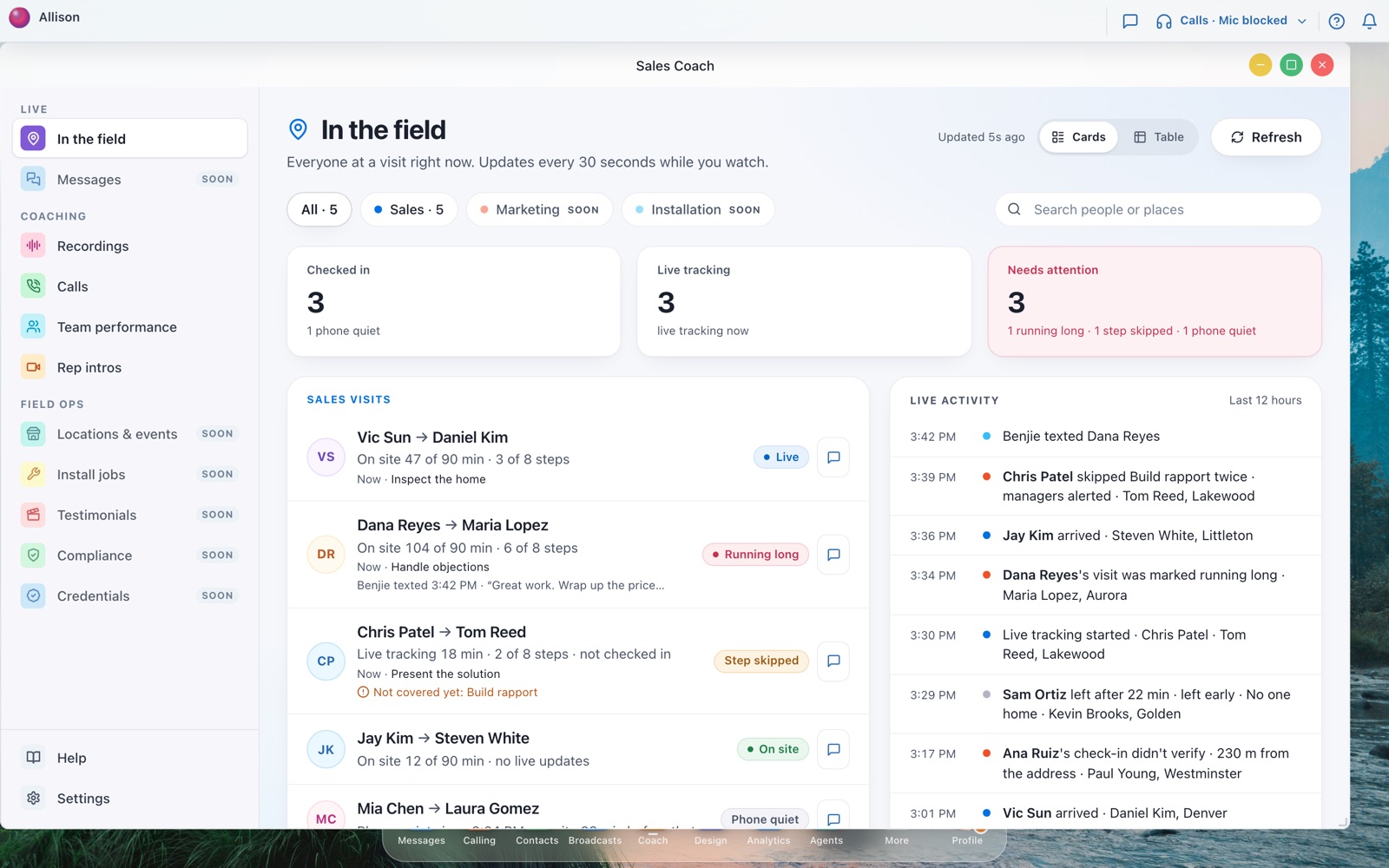
| Tile | What it counts |
|---|---|
| Checked in | Reps whose phone confirmed it is at the visit in the last 5 minutes. "1 phone quiet" means one checked-in phone has gone silent. |
| Live tracking | Visits where the live tracker is hearing the conversation right now. "1 paused" means no update for over 2 minutes. |
| Needs attention | Visits that need you now, with the reasons underneath. |
The sidebar lists every Sales Coach section. Sections marked Soon (Messages, Locations & events, Install jobs, Testimonials, Compliance, Credentials) open a short note on what is coming. The team chips above the tiles work the same way: Sales is live; Marketing and Installation are coming soon.
Each tile is also a filter. Click it to show only those visits; click it again to see everyone. A dash (—) instead of a number means that signal is off for your workspace, and the tile says why. It never means zero.
What "Needs attention" means
A visit needs you when one of these is true and the phone is still sending something:
- Running long: past your visit maximum (set in Sales Coach → Settings → Visit length).
- Step skipped: the rep skipped the same sales step twice and managers were emailed. It clears once the rep covers that step.
- Phone quiet: the phone stopped sending its location in the last hour, and there is no live tracking either.
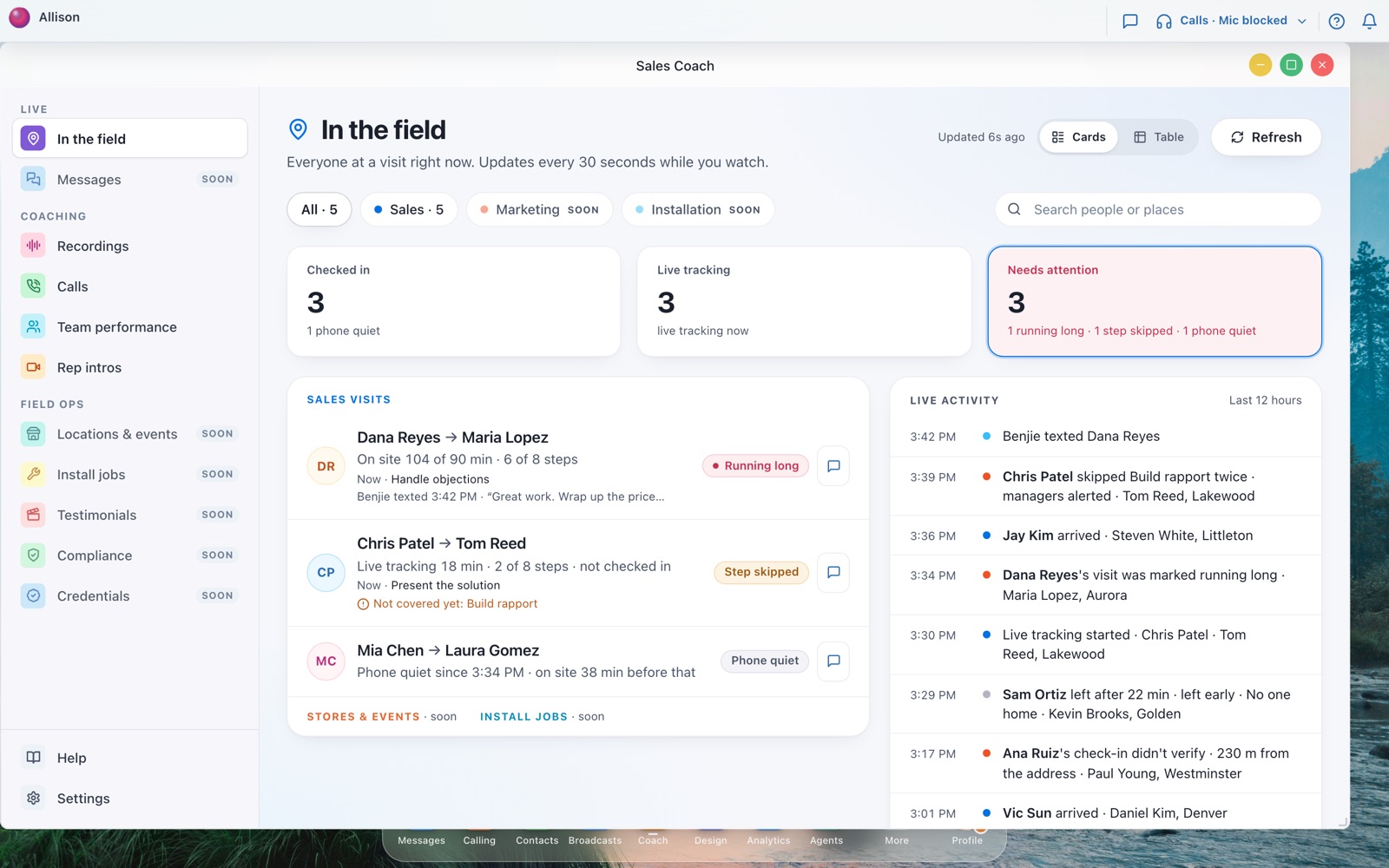
A phone that has been silent for over an hour stops counting. It moves into Went quiet over an hour ago at the bottom of the list, so one dead phone can't keep the tile orange all day. A live nudge on its own ("Not covered yet") is not counted: the rep already sees it on their phone.
Step 2: Open a visit
Every row is one rep at one visit: Rep → Customer · Town, one line saying where things stand, and one badge for the most urgent state (Running long, Step skipped, Phone quiet, Live, Paused or On site).
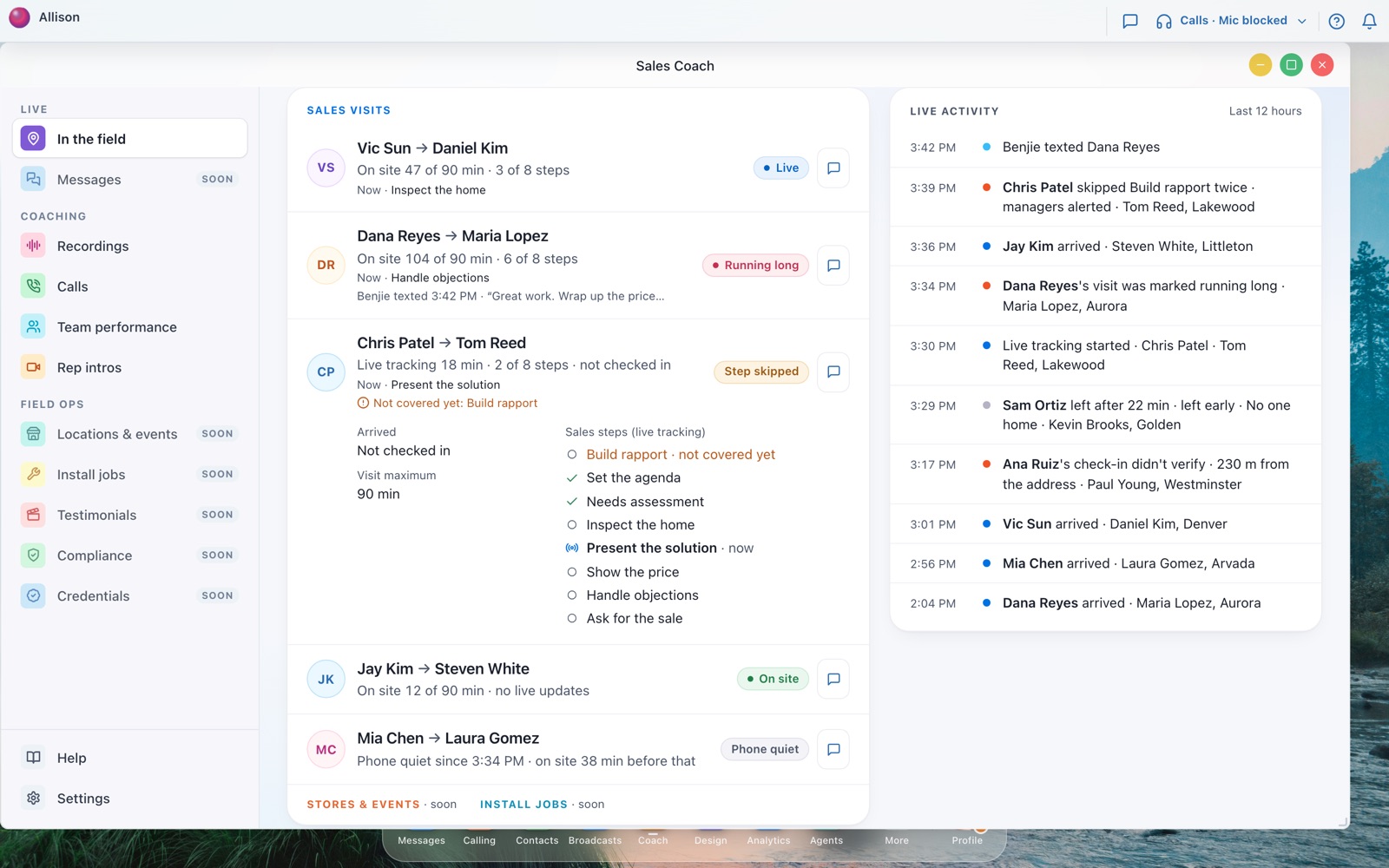
Click a row to open it. You see when the rep arrived, the last location reading, your visit maximum, and every step of your sales process: covered (✓), the step they are on now, and any step not covered yet.
Step 3: Text the rep
- Press the message icon on the visit.
- Pick one of the suggested texts, or write your own (up to 320 characters). Suggestions come from the visit's step progress, never from the conversation.
- Press Send text. It goes to the rep's phone from your workspace number, and the row shows the last text you sent.

The rep needs a mobile number on their profile, and a rep who replied STOP is not texted. When the rep texts back, the reply comes to you in Sales Coach Messages and shows under your text on that visit; it does not become a new lead. The rep is recognised by the mobile number on their profile.
Step 4: Read Live activity
Beside the visits (or below them on a narrow screen), Live activity shows the last 12 hours, newest first:
- a rep arrived, or a check-in didn't verify (with how far away they were);
- live tracking started;
- a step was skipped twice and managers were alerted;
- a visit was marked running long;
- a rep left, how long they stayed, left early, and the reason they picked;
- a manager texted a rep, or a text didn't send.

Times are shown in each visit's own time zone, like the rest of the page. A rep's free-text leave note is never shown, only the reason they picked.
Prefer the old table?
Press Table at the top right to switch to the original table, with one row per visit and a column for each detail. Press Cards to come back. Your choice is remembered on this computer. The tiles and Live activity work in both views.

Who can see it
| Who | In the field | Text a rep |
|---|---|---|
| Owners, admins and managers | Yes | Yes |
| Field reps and other team members | No | No |
Arrival and on-site time need visit check-in, which your account manager turns on. Live tracking needs process steps in your scorecard and your workspace's own AI key; the Visits checklist in Sales Coach → Settings shows both.
Troubleshooting
| What you see | Why | Fix |
|---|---|---|
| In the field isn't in the view buttons | You are signed in as a rep. | Only owners, admins and managers see it. |
| Checked in shows — | Visit check-in is off for this workspace. | Ask your account manager to turn on check-in. |
| Live tracking shows — | No process steps or no AI key, so live tracking can't run. | Press Open Settings under the tiles and check the Visits checklist. |
| "No reps are at a visit right now" | Nobody checked in or was tracked in the last 12 hours. | Nothing to do. |
| A visit shows minutes but no "of 90" | No visit maximum is set. | Set it in Sales Coach → Settings → Visit length. |
| Live activity says it couldn't load | A temporary problem reading recent events. | The visits above are still current; it tries again on the next refresh. |
Questions
Do we need to turn it on? No. Every owner, admin and manager sees In the field in Sales Coach.
Does it show a map or play audio? No. Only the distance from the visit address is kept, never where the phone was, and nothing here plays audio.
How long is this kept? Step progress and location records are kept for 30 days and then deleted. An admin can erase a visit's location evidence sooner from the contact's Sales Coach card.
Can you help us get started? Yes. Contact our support team and we'll walk you through it.