---
title: "Video messages"
description: "Record a short video, send it in the chat, and play the reply in place."
---
> Documentation Index
> Fetch the complete documentation index at: https://guides.channelautomations.com/llms.txt
> Use this file to discover all available pages before exploring further.
# Video messages
[Open original guide with interactive examples →](/originals/video-messages/)
## Watch the walkthrough
A narrated introduction and how-to, under two minutes. Turn on captions with the CC button. The contacts and messages on screen are example data.
**The short version** Video messages are already in LiveChat in every workspace; there is nothing to switch on. Open **Text Messages**, choose a contact, stay on the **SMS** tab and click **Record video** below the message box. Record up to 30 seconds, click **Use**, check the preview, then click **Send**. Prefer your phone? Click **Record on phone** and scan the code.
## Why it matters
A long text can feel cold, and a phone call isn't always welcome. A short video shows your face, your product or the job site in a few seconds.
**Before**Recording on a phone, finding the file, moving it to the computer and attaching it, or giving up and typing a long explanation.
**Now**Record, review and send from the conversation you're already in, on your computer or your phone.
**Why that helps**A friendlier first touch, quicker answers to "what does it look like?", and customer videos you can watch without leaving your work.
**Good uses:** a personal hello to a new lead, a quick product or project demonstration, a progress update from the job, or a reply to a customer who sent you a video of a problem.
## Record on your computer
1. Open **Text Messages** from the dock and choose a contact.
2. Make sure the **SMS** tab is selected, then click **Record video** below the message box.
3. The first time, your browser asks to use your camera and microphone. Click **Allow**.
4. When you see **Camera ready**, click **Record**. You have up to **30 seconds**; the countdown shows the time remaining and recording stops on its own at the limit.
5. Click **Stop** when you're done. Watch it back under **Review your video**.
6. Click **Retake** to try again, or **Use** to add it to your message.

ExampleThe **Record video** window, camera ready.

Example**Record video** sits below the message box, next to the other composer tools.

Example**Review your video**: Retake, or Use to add it to your message.
## Record on your phone
Use your phone's camera when it's handier, for example on a job site or when your computer has no webcam. You don't sign in on the phone.
1. In the conversation, click **Record video**, then **Record on phone**.
2. Scan the QR code with your phone's camera and open the link.
3. On your phone, record a clip up to 30 seconds and watch it back. Tap **Retake** if needed.
4. Tap **Upload video**. The phone shows **Video uploaded. Return to your computer to preview and send.**
5. Back on your computer, the clip appears in the conversation's message box, ready to preview and send.
**Each code works once, for 10 minutes.** The timer under the code shows how long it has left. If it runs out, click **New QR code**. Click **Cancel** to stop waiting for your phone.
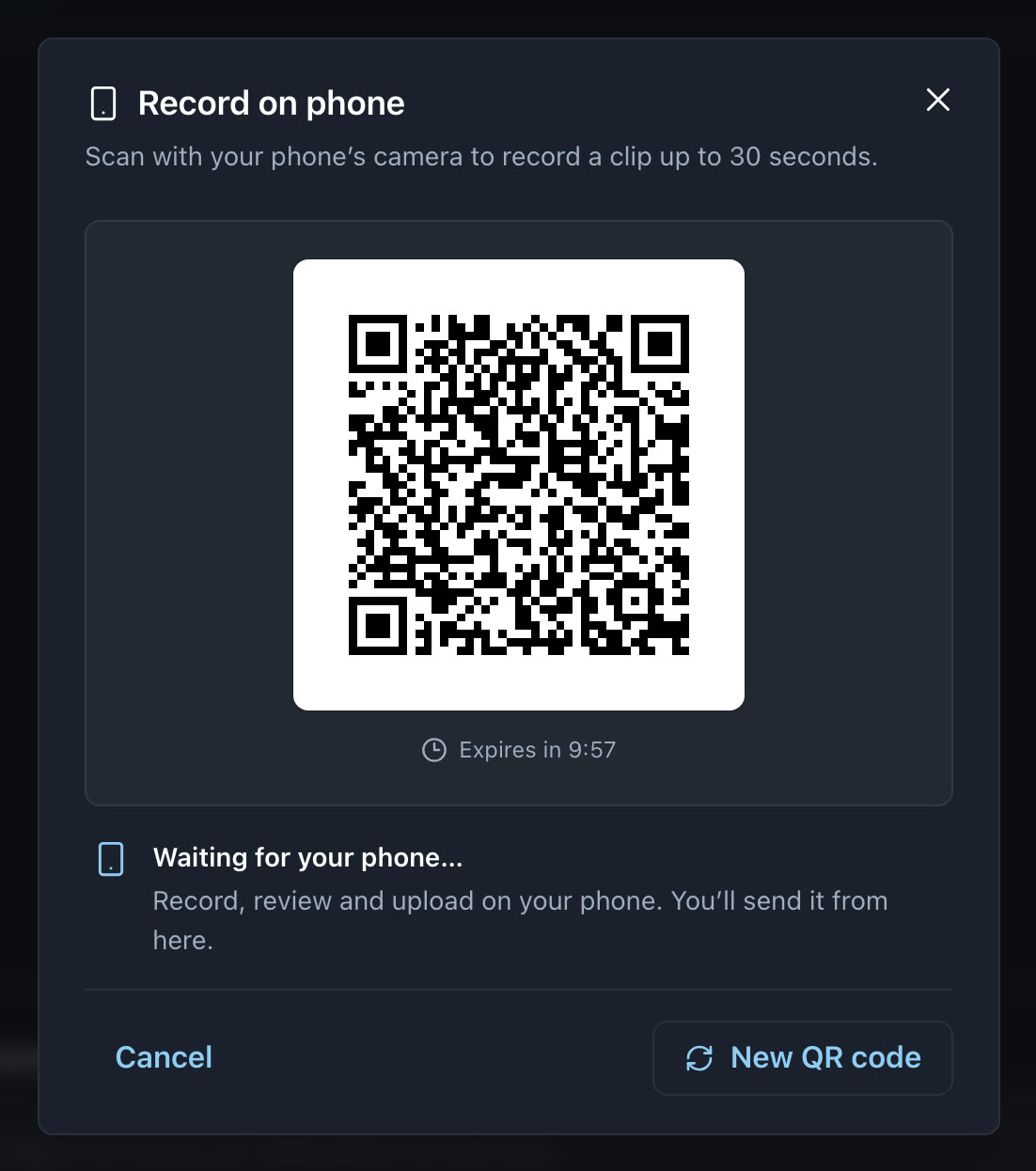
Example**Record on phone**, waiting for your phone.

ExampleOn the phone: record, watch it back, tap **Upload video**.
## Use a clip you already have
1. Click **Attach image** (the camera icon) below the message box and choose a video file.
2. Choose a clip up to **30 seconds** long and smaller than **50 MB**.
3. It's prepared for texting the same way as a recorded clip.
## Review and send
1. While **Uploading…** or **Compressing…** shows, the video is being prepared for texting and **Send** is unavailable.
2. When it's ready, the preview shows the clip's length and final size, for example **0:08 · 289 KB**. Play it to check the result.
3. Add a message if you like, then click **Send** or **Send and Close**.
4. Changed your mind? Click **Remove** to discard the video and keep writing.

ExampleA prepared video, attached and ready to send.
**Good to know.** One video per message; you can add text and photos with it. Video messages can't be scheduled. Switching to another contact or another tab (Comment or Email) discards the video draft.
## Watch videos in the conversation
Videos you send appear in the conversation with playback controls.
When a customer sends you a video, it shows as a video attachment. Click **Play video** to load it, then use the playback controls. A message with videos and photos keeps each item in the conversation.
- If loading fails, click **Retry video**.
- If your browser can't play the format, use **Open video** or **Download video**.

ExampleA video in the conversation, with playback controls.
## How it's delivered
- Videos are compressed for texting so they arrive on your customer's phone. The preview shows exactly what will be sent.
- Videos go out the way your workspace already sends picture messages, from the conversation's usual number.
- If rich messaging (RCS) is enabled for your workspace and the contact, one photo or prepared video can go out over RCS, with or without text. If delivery falls back to a picture message, the same prepared video is used. An **RCS** badge appears only when delivery is confirmed over RCS.
## Tips for a great video
**Keep it short**15 to 30 seconds is plenty. Shorter clips also look sharper after compression.
**Light your face**Face a window or lamp, not away from it.
**Say their name**Open with the customer's name and one clear next step.
**Watch it back**Use Review your video before you click Use. Retake costs nothing.
## Troubleshooting
| What you see | Why | Fix |
| --- | --- | --- |
| "Allow camera access in your browser to record." | The browser blocked the camera or microphone. | Allow camera and microphone for this site in your browser's address bar, then click **Retry**. |
| Camera unavailable | No camera found, or another app is using it. | Close other video apps, or use **Record on phone**. |
| The clip is too long | Videos can be up to 30 seconds. | Trim the clip, or record a shorter one. |
| The video can't be made small enough to text | The clip has too much detail for a text message. | Try a shorter clip. |
| "Couldn't prepare the video." | Preparation didn't finish. Nothing was sent. | Click **Retry**, or **Remove** and try again. |
| The QR code expired | Each code works once, for 10 minutes. | Click **New QR code** and scan again. |
| Send is greyed out | The video is still uploading or compressing. | Wait for the length and size to appear in the preview. |
| A received video won't play | The video didn't load, or your browser can't play its format. | Click **Retry video**, or use **Open video** or **Download video**. |
**Still stuck?** Contact our support team with the contact's name, the time, and the exact message you saw.
## Questions
**Do we need to turn it on?** No. Video messages are in LiveChat in every workspace today.
**Can a video send by accident?** No. Recording, uploading and preparing never send anything. A video goes out only when you click Send.
**How long can a video be?** Up to 30 seconds. Recording on your computer stops on its own at the limit.
**Why does the video look softer than my original?** Videos are compressed so they can be delivered as a text message. A shorter clip and good lighting give the clearest result.
**Do I need to sign in on my phone?** No. Scanning the code opens a one-time recording page for that conversation. It works once and expires after 10 minutes.
**Can you help us get started?** Yes. Contact our support team and we'll walk you through it.
Channel Automation · Help · Last updated 2026-10-15.
Questions? Ask your account manager, or open **Help Docs** inside the app — the same guidance lives there.
Source: https://guides.channelautomations.com/automation/video-messages/index.mdx