---
title: "LeadPerfection call result rules"
description: "Client guide and SOP for LeadPerfection Call Result Rules: choose what each LeadPerfection call result does, Do not contact or Pause automation, apply it to older leads, and undo a pause."
---
> Documentation Index
> Fetch the complete documentation index at: https://guides.channelautomations.com/llms.txt
> Use this file to discover all available pages before exploring further.
# LeadPerfection call result rules
[Open original guide with interactive examples →](/originals/leadperfection-call-result-rules/)
## Watch the walkthrough
A narrated two-minute introduction and walkthrough. Turn on captions with the CC button. The contacts, codes and numbers on screen are example data.
**The short version** Open **Settings** → **Lead Perfection** and scroll to **When LeadPerfection records a call result**. For each result code, choose **Nothing**, **Do not contact**, or **Pause automation** with a number of days, then click **Save rules**. From then on, every new call result that matches a rule is acted on once.
## Why it matters
Your reps log every call in LeadPerfection. Until now, a result like _Do not call_ or _Not interested_ stayed there, and your text campaigns kept messaging that customer.
**Before**A rep logs "Not interested" in LeadPerfection. An hour later your campaign texts the same customer, unless someone remembers to update the contact here too.
**Now**Your rules act on the result automatically: the contact is marked Do Not Contact, or their automation pauses for the days you chose.
**Why that helps**Customers who said no stop hearing from you, people who asked for time get it, and your managers stop updating two systems by hand.
## Before you start
- **Owner or admin.** Only workspace owners and admins can change these rules.
- **Lead Perfection is connected.** The result codes come from your own LeadPerfection account. If the table says **Connect Lead Perfection above to load disposition codes**, connect it first in the same page.
- **Know your codes.** Agree with your team which results mean "never contact again" and which mean "try again later", and for how long.
- **Optional: a date trigger.** If you want follow-ups to restart on their own when a pause ends, create the date trigger on **Outreach hold until** before you turn that option on. Dates are not backfilled.
## Set it up
1. Open **Settings** and click **Lead Perfection** in the left menu, under Integrations & Intake.
2. Scroll to **When LeadPerfection records a call result**. It shows **Not configured (inert)** until you save rules.
3. For each result code, open the **Action** menu and choose **Nothing**, **Do not contact**, or **Pause automation**. For a pause, type the number of days (1 to 365).
4. Optional: turn on **Write an Outreach hold until date** (see the tip below).
5. Click **Save rules**. The badge changes to **Active (v1)**, and each later save adds a version.
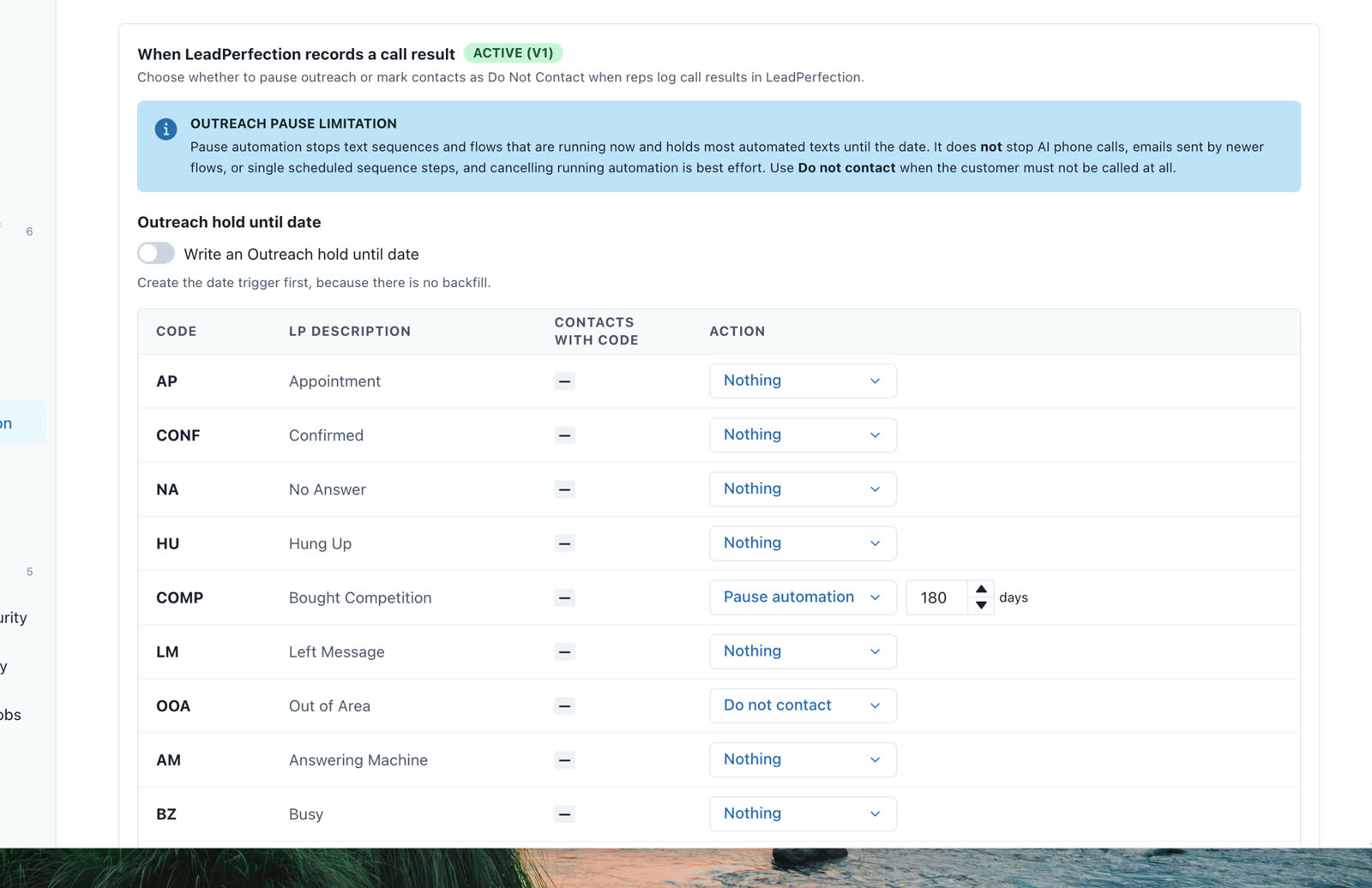
ExampleCOMP (Bought Competition) pauses for 180 days. OOA (Out of Area) is marked Do not contact.
**No time zone to set** LeadPerfection records call times in your company's local time, so they're read in your workspace's time zone. Each pause ends at midnight in the contact's own time zone.
## The actions
| Action | What happens to the contact |
| --- | --- |
| Nothing | No change. This is the default for every code. |
| Do not contact | Lead status becomes DNC, text and email opt-ins are turned off, the conversation is closed, and running automation is cancelled. It's recorded in your do-not-contact log. |
| Pause automation for N days | Running text sequences and flows are cancelled, and most automated texts are held until midnight (contact's time) on the call date plus N days. |
**Outreach hold until** With this option on, a pause also writes an **Outreach hold until** date on the contact, set to the day after the pause ends. Use a date trigger on that field, firing on the date itself in the contact's time zone, to restart follow-ups automatically.
## How results arrive
- We check LeadPerfection for new call activity **every 15 minutes, from 7 AM to 9 PM Central**, every day.
- For each lead, we read the **latest** call result. If it matches a rule and the call was logged after you saved your rules, we act.
- Each call is acted on **once**. Checking again, or a second sync, never applies it twice.
- A longer background check also works through all your LeadPerfection leads over time, and catches results the 15-minute check didn't see.
- Need one contact checked right now? Use the refresh icon next to them on the Lead Perfection contacts page.
## Apply rules to older leads
1. Save your rules first. **Preview existing leads** stays disabled while the table has unsaved changes.
2. Click **Preview existing leads**. The preview shows how many contacts match, how many pauses have already ended (they're skipped), and a breakdown by code and action.
3. Check the numbers, then click **Apply**. Leads are processed in batches with a progress line.
4. If it stops part way, click **Resume Apply**. Contacts that were already done are skipped.
Each preview covers up to **5,000** contacts. If you have more, choose one result code in the preview and apply code by code.
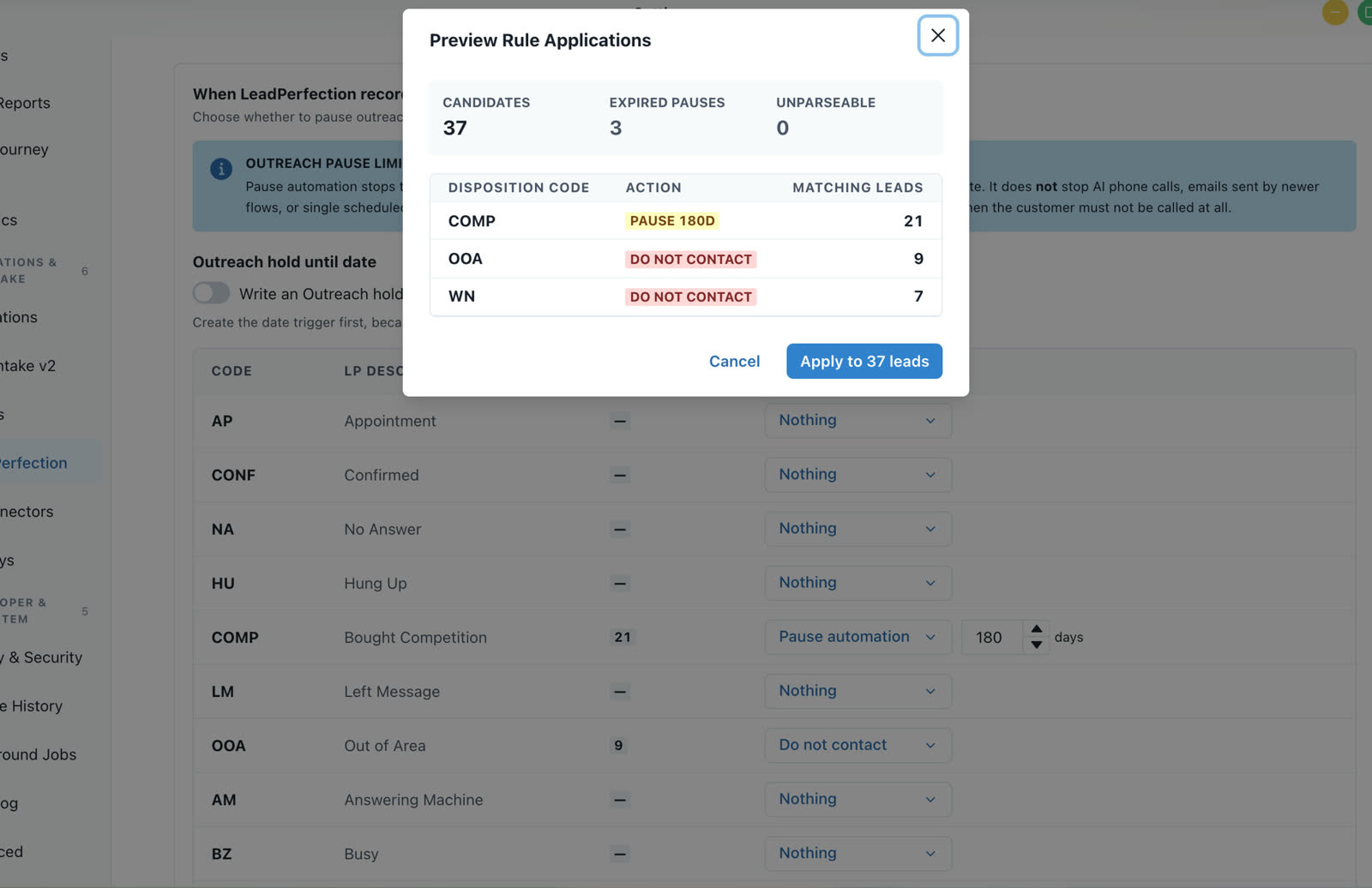
ExampleThe preview before you apply.
## Undo
- **To undo a pause:** open the contact and click **Resume Automation** in the contact's quick actions. It clears the pause date, removes the Outreach hold until date, and stops any pending pause for that call.
- **To undo a Do Not Contact set by a rule:** contact support. It's locked on purpose, so changing the lead status or opt-ins puts it straight back.
- **To change a rule:** edit the table and click **Save rules** again. Calls already acted on keep what was applied.
## Good to know
**What a pause doesn't stop** Pause automation stops text sequences and flows that are running now and holds most automated texts until the date. It does **not** stop AI phone calls, emails sent by newer flows, or single scheduled sequence steps, and cancelling running automation is best effort. Use **Do not contact** when the customer must not be called at all.
- **Results your own automations write back** to LeadPerfection (with Add Call History) aren't seen by the 15-minute check. They're applied when the contact is refreshed or by the longer background check.
- **Only calls after you save count automatically.** Use Preview and Apply for older calls.
- **Turning rules off:** set every code to **Nothing** and save.
## Troubleshooting
| What you see | Why | Fix |
| --- | --- | --- |
| "Connect Lead Perfection above to load disposition codes" | Lead Perfection isn't connected, or its login stopped working. | Connect it on the same page and click **Test**. |
| A contact wasn't paused or marked | The call was logged before you saved rules, its code is set to Nothing, or it hasn't been checked yet. | Wait for the next 15-minute check, refresh the contact, or use Preview and Apply. |
| Preview existing leads is greyed out | The table has unsaved changes. | Click **Save rules** first. |
| A "needs attention" message on the section | Some contacts couldn't be updated yet. | They're retried automatically. If it stays, contact support. |
| "These rules were changed by someone else" | Another admin saved rules after you opened the page. | Reload the page and make your change again. |
**Still stuck?** Contact our support team with the contact's name, the result code and when the call was logged.
## Questions
**Does this change anything before I save rules?** No. Until you save rules, the section is inert and nothing happens.
**Which result counts if a lead has several calls?** The latest call result.
**Can one call be acted on twice?** No. Each call is acted on once, even if it's checked again.
**When does a pause end?** At midnight in the contact's own time zone, on the call date plus the number of days you set.
**Do I need to set a time zone?** No. Call times are read in your workspace's time zone.
**Will AI phone calls stop during a pause?** No. Use Do not contact when a customer must never be called.
**Can you help us choose rules?** Yes. Contact our support team and we'll go through your result codes with you.
Channel Automation · Help · Last updated 2026-10-29.
Questions? Ask your account manager, or open **Help Docs** inside the app — the same guidance lives there.
Source: https://guides.channelautomations.com/automation/leadperfection-call-result-rules/index.mdx